
Convert Logos into BAi Embroidery Files Like a Pro: Tips for Clean Stitching
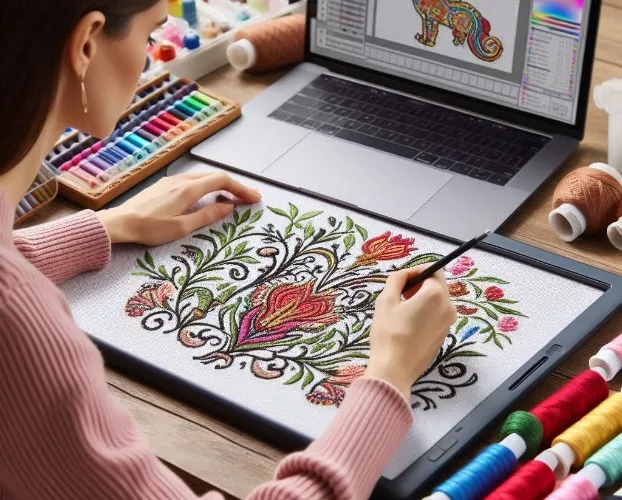
You have a logo that represents your brand. Maybe it is the centerpiece of your company's identity, the symbol customers recognize and trust. Now you want that logo on uniforms, caps, and promotional items. Your BAi machine is ready to go. But there is a catch. That JPG or PNG file you have is useless to your machine. It needs stitch data, not pixels. Learning how to convert logos into BAi embroidery files correctly is the difference between professional-looking embroidery and frustrating failures.
BAi embroidery machines have earned a solid reputation among small shops and larger businesses for balancing affordability with advanced features . They can handle everything from simple text on caps to detailed multi-color logos on uniforms and jackets . But they require files in formats like DST and DSB that contain the stitch data needed for accurate embroidery . This guide walks you through the pro techniques for flawless conversion.
Understanding What Your BAi Machine Needs
Before you convert anything, you need to know what your machine actually reads. BAi machines are designed to work with professional embroidery file formats that contain stitch data, color changes, and movement commands .
DST is the primary format. This is the Tajima format, the most common in professional embroidery. It stores all important stitch details including movement, direction, and color changes . It is a universal format that ensures smooth, accurate stitching and minimal compatibility issues.
DSB is the Barudan format. Originally made for Barudan machines, it works similarly to DST and is also supported by BAi machines . While less common, some digitizers prefer it for specific projects.
Both formats work, but DST is the preferred choice among professionals for its universal compatibility and easier editing . Using the correct format ensures your machine runs smoothly and your design stitches exactly as intended.
Why Image Files Won't Work
Here is the honest truth. Formats like JPG, PNG, or PDF only store visual information . They may look clear on screen but contain no technical stitching data. Without proper conversion into an embroidery file, BAi machines cannot interpret them .
Think of it this way. A JPG shows what the design looks like. An embroidery file tells the machine where to start, where to end, how to sew each part, when to change colors, and where to trim. It is the difference between a photograph of a house and the construction blueprint.
Preparing Your Logo Before Conversion
Professional results start before you ever open software. Take these steps to set yourself up for success.
Use a high-resolution image. Start with a clear, high-resolution version of your logo. Blurry or pixelated images make it difficult for digitizing software to identify shapes and details, which leads to poor embroidery results .
Simplify the design. Logos with too many colors, gradients, or tiny details create challenges in embroidery. Simplify by removing unnecessary elements. Clean, bold shapes always translate better than cluttered artwork .
Match thread colors in advance. Unlike digital prints, embroidery relies on thread colors. Before conversion, select the closest thread shades that match your brand . Thread availability and texture can slightly affect how the logo appears once stitched.
Decide placement and size. A small chest logo on a polo shirt needs different stitch density than a large jacket back design. Prepare your logo with the final placement and size in mind . This ensures perfect results.
Software Options for BAi File Conversion
If you plan to convert logos yourself, you need digitizing software. Here are the main options.
Wilcom Embroidery Studio E4 is the gold standard in professional embroidery digitizing . It offers complete control over stitch types, density, underlay, and sequencing. It exports directly in DST and DSB formats and is ideal for detailed logos and multi-color designs. The downside is cost and learning curve .
Ricoma Chroma is simpler to use with a user-friendly interface, making it good for beginners . It supports DST output and produces clean designs for general logo digitizing, though it lacks some advanced features.
Ink/Stitch is a free, open-source plugin for Inkscape . It works for hobbyists who want to experiment without investing in paid software. However, it lacks advanced features like stitch density control and complex underlay management that are important for professional results .
Free auto-digitizing tools are tempting but often generate generic stitch patterns without proper path planning or fabric considerations . The result usually looks acceptable on screen but fails during the sew-out.
The Step-by-Step Conversion Process
Here is how professionals convert logos into BAi files for clean, accurate stitching.
Step 1: Import the Logo
Open your chosen digitizing software and import your prepared logo. A clean, high-resolution file ensures the program can properly trace shapes and convert them into stitch paths .
Step 2: Set Design Size and Hoop Area
Define the embroidery size according to the placement. A left chest, cap front, or jacket back each require different dimensions . The chosen size affects stitch density, so this step must be accurate.
Step 3: Define Stitch Types
Different logo elements need different stitch types .
Satin stitches work best for letters, borders, and thin elements. They create smooth, raised edges that catch light nicely.
Fill stitches (also called tatami) cover large areas with even texture.
Running stitches handle fine lines, details, and underlay.
Choosing the right stitch type ensures both durability and visual appeal .
Step 4: Apply Underlay for Stability
Underlay stitches act as the foundation of embroidery . They go down first, stabilizing the fabric before the top stitches appear. This prevents fabric movement or distortion. Skipping underlay results in a messy or uneven design .
Different fabrics need different underlay types. Edge runs or zigzag underlays work well for logos with thick borders .
Step 5: Adjust Density, Pull Compensation, and Direction
Stitch density determines how close stitches are placed. Too dense, and threads break or fabric puckers. Too light, and gaps appear .
Pull compensation accounts for fabric distortion during stitching. When thread stitches into fabric, it pulls the material together. Compensation widens certain areas so they end up the correct size after stitching .
Stitch direction affects how light reflects off the finished embroidery. Plan direction to follow the natural flow of your design for a polished look .
Step 6: Assign Thread Colors and Sequence
Choose thread colors that match your logo and arrange them in the correct sequence . This avoids unnecessary color changes and keeps production efficient .
Step 7: Save in BAi-Compatible Format
Export the file specifically in DST or DSB format that BAi machines read . Using another format will not work properly.
Step 8: Test the Design
Always run a test sew-out on similar fabric before bulk production . This helps identify issues like misalignment, puckering, or thread breaks while materials are cheap.
Common Problems Without Proper Digitizing
Understanding what can go wrong helps you appreciate why professional techniques matter.
Thread breaks from wrong density. If stitch density is set too high, threads rub against each other and break frequently. Too low, and gaps appear .
Misaligned designs from poor underlay. Without proper underlay, designs shift during sewing. Outlines don't line up with fills, and letters look crooked .
Fabric puckering without compensation. Pull compensation balances thread tension on fabric. Without it, designs shrink or stretch, causing puckering and distortion .
Machine stops from corrupted formats. If the file is not exported properly, the machine may stop mid-production . Corrupted formats waste time and risk damaging fabric.
Every mistake in digitizing comes at a price. Wasted fabric, extra machine time, and disappointed customers damage both profits and reputation .
DIY Conversion vs Professional Services
Let us compare the two paths honestly.
DIY pros. Doing your own conversion can save money for hobbyists with personal projects. It is a great way to learn the basics and experiment .
DIY cons. Professional software is expensive, and free options are limited. The learning curve is steep. Mistakes in density, underlay, or stitch direction can easily ruin designs, wasting time and materials .
Professional pros. Professional digitizers bring years of expertise. They know how to balance stitch density, apply the right underlay, and adjust pull compensation for different fabrics . They deliver machine-ready files that run smoothly, avoiding thread breaks, misalignment, or puckering .
The smart choice. If you are a hobbyist creating designs for personal use, DIY may be worth trying. But if you run a business or need logos for uniforms, caps, or merchandise, professional services are the smarter choice . They guarantee polished results that reflect your brand in the best possible way.
Why Professional Digitizing Services Are Worth It
Here is what professional services actually offer.
Skilled and experienced digitizers. Professional digitizers have spent years mastering stitch techniques, density adjustments, and underlay planning . Their expertise ensures designs run smoothly on BAi machines without constant trial and error.
Affordable pricing. Many services offer hybrid pricing models starting as low as $10 per logo . This makes professional digitizing accessible even for small shops while delivering high-quality results suitable for bulk production.
Fast turnaround. Reputable services offer rush orders completed in as little as two hours . Twenty-four-seven support means help is always available.
Unlimited edits. Professional digitizers back their work with free unlimited edits until you are completely satisfied . This takes the risk out entirely.
Peace of mind. You get files that are tested and guaranteed to stitch perfectly. No software investment. No steep learning curve. No wasted thread on test after test.
Tips for Working with a Professional Digitizer
To get the best results, give your digitizer clear information.
Provide your logo in the highest quality format available. Vector files like AI, EPS, or PDF are ideal because they scale perfectly . If you only have a JPG, make sure it is large and sharp.
Tell them the final stitch size and placement. Left chest logos need different handling than jacket backs. Specify the fabric type if you know it. Denim needs different digitizing than performance polos.
Share any brand color requirements. If you use specific Pantone colors, provide them. The digitizer matches thread colors as closely as possible using standard thread charts.
Mention your machine model. BAi machines vary slightly, and professionals can adjust file formats accordingly.
The Bottom Line on Clean Stitching
Clean stitching starts with clean digitizing. A properly converted file has smooth edges, consistent density, proper underlay, logical sequencing, and correct sizing. It has been tested and refined to run without errors.
Your BAi machine is capable of stunning embroidery. Feed it properly converted DST or DSB files, and it will reward you with flawless results every time.
Whether you choose the DIY path with software or the guaranteed path with professional services, the goal is the same: beautiful embroidery that brings your logos to life in thread. For most businesses, professional digitizing is the smartest investment. It saves time, eliminates guesswork, and protects your materials.
Your logo represents everything your business stands for. When you put it on uniforms and products, it speaks for you. Make sure it speaks clearly. Invest in proper conversion, and your embroidered logo will look just as sharp as your printed one, stitch for stitch.

 English
 Arabic
 French
 Portuguese
 Deutsch
 Turkish
 Dutch
Dutch
 Italiano
 Russian
 Romaian
 Portuguese (Brazil)
 Greek
Greek