


How to Download Movies on Netflix to Watch Offline
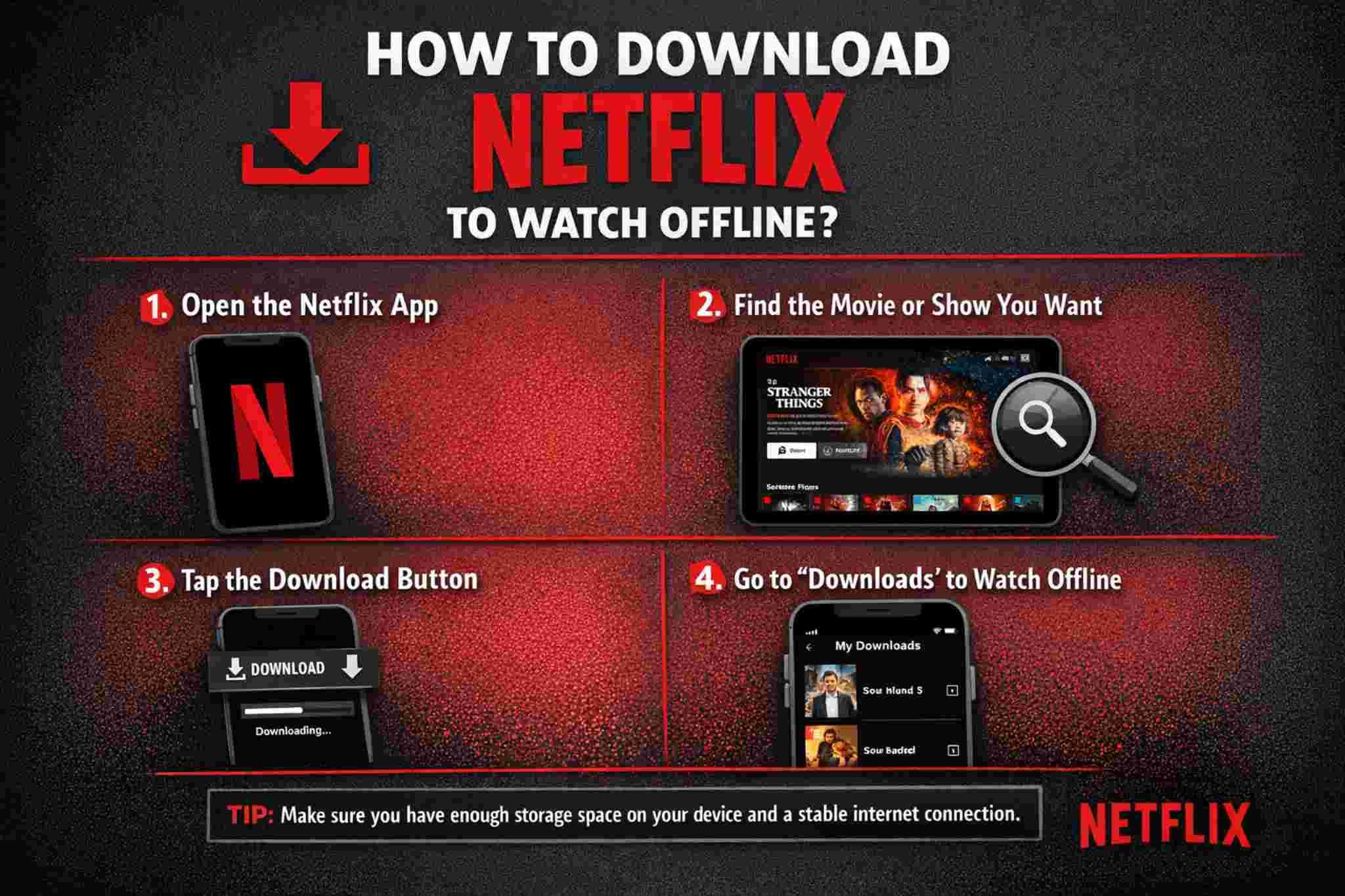
A long flight with no Wi-Fi. A road trip through areas with no signal. A weekend getaway somewhere off the grid. These are exactly the situations Netflix's offline download feature was designed for — and it works brilliantly once you know how.
Downloading movies on Netflix is official, straightforward, and completely free within your subscription. This guide covers every step of the process across every supported device.
Does Netflix Let You Download Movies?
Yes — completely officially. Netflix introduced offline downloads in 2016 and the feature has expanded steadily since. Downloaded movies play directly from your device's storage with no internet connection, no buffering, and no data usage.
How Netflix Downloads Work
Downloaded Netflix movies are stored in a DRM-protected format on your device. They play only through the Netflix app — not through other media players and not transferable to other devices. Within the Netflix app the offline experience mirrors streaming exactly — same interface, subtitles, and audio options — just without any connection needed.
Plans That Include Download Access
The Standard with Ads plan does not include downloads — this is deliberate. The Standard plan supports downloads on two devices. The Premium plan supports downloads on up to six devices at the highest available quality including Ultra HD. Standard is the minimum plan required for any offline movie access.
Devices That Support Netflix Downloads
Compatible Devices for Offline Viewing
Netflix downloads work on Android phones and tablets running Android 4.4.2 or later, iPhones and iPads on iOS 11.0 or later, Windows 10 and 11 PCs through the Microsoft Store Netflix app, and select Chromebooks. Downloads are available only through Netflix's native apps — no browser on any platform supports offline downloads.
Devices That Cannot Download Netflix
Mac computers, Linux machines, most Android TV boxes, smart TVs, Amazon Fire TV sticks, and Roku devices do not support Netflix downloads. If your main device falls into these categories a phone or tablet is your practical solution for offline viewing.
Preparing Your Device for Downloads
Storage Requirements for Movies
At Standard quality a two-hour movie uses approximately 1GB to 2GB. At High quality the same film needs 3GB to 6GB. At Ultra HD on the Premium plan a feature film can reach 10GB to 25GB. For a trip with five movies at High quality clear at least 20GB to 30GB before downloading.
How to Free Up Space Before Downloading
On Android go to Settings then Storage. On iPhone go to Settings then General then iPhone Storage. Delete unused apps, old photos, and previous downloads to create room. Incomplete downloads caused by running out of storage mid-way are frustrating — clearing space beforehand prevents this entirely.
How to Download Movies on Netflix
Downloading on Android
Connect to Wi-Fi and open the Netflix app. Find the movie you want and open its detail page. Below the title tap the download icon — a downward-pointing arrow alongside the Play button. The download starts immediately. Monitor progress through the Downloads tab in the bottom navigation bar.
Downloading on iPhone and iPad
The process mirrors Android exactly. Open the movie's detail page and tap the download arrow below the title. If the icon is absent or grayed out that title cannot be downloaded due to licensing restrictions — no workaround exists for this limitation.
Downloading on Windows PC
Open the Netflix app from the Microsoft Store — not a browser. Navigate to the movie and click the download icon on its detail page. Downloads are stored in a Netflix-protected folder accessible only through the Netflix app and unplayable through any other application.
Playing Netflix Movies Offline
Finding and Watching Your Downloads
Open the Netflix app — no internet required. Tap the Downloads icon in the bottom navigation bar. All saved movies appear here with titles, thumbnails, file sizes, and expiry dates. Tap any movie and press Play. Playback begins instantly from local storage with zero loading time.
Preventing Offline Playback Issues
Netflix occasionally requires a brief license verification that needs internet — this happens when a download has not been opened for several days. Prevent this by briefly playing the first few seconds of each downloaded movie while still connected to Wi-Fi before going offline. This resets the verification timer and keeps all downloads playing smoothly throughout your offline period.
Choosing the Right Download Quality
Standard vs. High Quality
Standard produces smaller files but softer picture — acceptable on small phone screens but noticeably weaker on tablets and laptops. High quality delivers significantly better picture at roughly double the file size. For movies worth watching properly High quality is always the right choice. Standard only makes sense when storage is critically limited.
How to Change Quality Settings
Tap your profile icon in Netflix and go to App Settings. Select Download Quality and choose Standard, High, or Ultra HD. This applies to all future downloads immediately. Existing downloads keep their original quality — delete and re-download to change previously saved films. Configure this before starting any download session.
Netflix Download Expiry — What You Need to Know
The Two Timers That Control Your Downloads
Every Netflix download has two independent expiry timers running simultaneously. The download expiry begins from the moment you save the file — 7 to 30 days depending on the title. Netflix originals typically allow 30 days. Many licensed third-party films allow only 7. The watch window starts the moment you press play — usually 48 hours to finish watching from that point.
Whichever timer expires first ends your access. A movie with 4 days of download expiry gives you only 48 hours once you start watching — not 4 full days.
How to Stay Ahead of Expiry Dates
Open the Downloads tab in Netflix. Each movie shows its expiry date below the title with a warning for approaching deadlines. Before any offline period review these dates and watch the most time-sensitive downloads first. Never assume a downloaded film is still valid — always verify the expiry date explicitly.
Why Some Movies Cannot Be Downloaded
How Licensing Affects Download Availability
Rights holders — the studios and distributors who license content to Netflix — determine whether offline viewing is permitted for each title. Many restrict it entirely. Netflix originals are almost universally downloadable because Netflix controls those rights directly. Third-party licensed content varies entirely by title and region with no consistent pattern.
Checking Availability Before You Need It
Open the movie's detail page in the Netflix app. An active download arrow below the title means it is available for offline saving. An absent or grayed-out icon means it cannot be downloaded in your region. Check your intended movies at least 24 to 48 hours before any offline period — not at the last minute — to allow time for finding alternatives.
Watching Downloads on a TV Screen
Why TV Devices Do Not Support Downloads
Netflix's download feature is built for mobile viewing scenarios. Most television-connected devices — Android TV boxes, smart TVs, Fire TV sticks, and Roku players — do not support Netflix downloads regardless of hardware. This is a deliberate platform decision rather than a technical limitation that can be overcome.
The Simple Workaround for Big Screen Viewing
Download to a phone or tablet and connect the device to your television using a USB-C to HDMI adapter for Android or a compatible adapter for iPhone. The Netflix app on your mobile device plays the film while the TV displays it full screen. Use a quality adapter — inexpensive ones visibly degrade picture quality on larger displays.
Netflix Download Limits Explained
How Many Downloads You Can Have
Netflix allows 100 downloads per device across all content combined — movies and TV episodes together. Each device maintains its own independent limit. Available storage becomes the real constraint for High quality movie downloads long before reaching 100 titles.
Managing Your Download Library
Open the Downloads tab and delete watched content promptly. The count and storage update immediately after deletion — no restart required. Building the habit of deleting watched movies prevents hitting limits unexpectedly before a trip.
Downloading Netflix for Travel
Do Downloads Work Abroad?
Yes. Downloaded movies play in any country regardless of local Netflix content restrictions. The file is stored locally and plays without geographic verification during offline playback. A movie downloaded at home plays without issue in a country where that title is completely unavailable on Netflix.
Pre-Travel Download Checklist
Before leaving home briefly open and play the first few seconds of every downloaded movie while connected to Wi-Fi. Check all expiry dates and confirm nothing expires during your trip. Verify total storage is sufficient for the entire offline period. This checklist takes ten minutes and eliminates the most common offline problems before they happen.
Fixing Netflix Download Problems
Common Issues and Solutions
Downloads not starting — confirm Wi-Fi is stable, verify your plan supports downloads, and check whether you have hit the 100-download limit. For downloaded movies refusing to play check the expiry date first. If expired re-download while connected. If not expired briefly connect to complete a license verification check — offline playback resumes immediately afterward.
What Netflix Error Codes Mean
Error 10016 means too many devices registered for downloads — remove unused devices through Account settings at netflix.com. Error 10023 indicates insufficient storage — free space and retry. Error 10008 signals a title-specific licensing issue — wait 24 hours. Error 10012 requires a Netflix app update — update through the Play Store or App Store first.
Permanent Offline Alternatives to Netflix
Options Without Expiry Dates
Netflix downloads expire between 7 and 30 days. For permanent offline access without countdowns purchasing digital copies through Google Play Movies, Apple TV, or Amazon Prime Video delivers non-expiring access. Physical media — Blu-ray and DVD — is the most durable solution of all. Discs play without internet, without apps, and without any expiry dates whatsoever. For films you rewatch regularly a physical copy bought during a sale often costs less than two months of streaming subscription and lasts indefinitely.
Conclusion
Downloading Netflix movies for offline viewing is one of the platform's most practical features. The process is simple — find the movie, tap the download arrow, wait for it to complete on Wi-Fi, and watch it anywhere without any internet required.
The essentials are straightforward. Standard with Ads cannot download. Set quality to High before starting. Check availability 48 hours before any offline trip. Watch expiry-sensitive downloads first. Briefly play every download on Wi-Fi before going offline to keep license timers current.
Follow these habits and your offline Netflix movie library is always ready — no signal required.
FAQs
1. How long does downloading a Netflix movie take? Download time depends on your Wi-Fi speed and quality setting. At High quality a two-hour film typically takes 15 to 45 minutes on standard home broadband. Downloading the night before a trip rather than the morning of eliminates time pressure entirely.
2. Can I download Netflix movies to an SD card on Android? Yes — on Android devices with a microSD card slot Netflix allows redirecting downloads to external storage. Go to App Settings in Netflix and find the Download Location option to select your SD card. This significantly expands offline storage capacity on devices with limited internal storage.
3. Why did my downloaded Netflix movie stop working? The most common cause is an expired download license. Expiry ranges from 7 to 30 days depending on the title. Connect to the internet and re-download the movie to get a fresh expiry period. Check expiry dates in the Downloads tab regularly to catch approaching deadlines before they become a problem.
4. Can I download Netflix movies on multiple devices at the same time? Yes — within your plan's device limits. Standard plan allows two simultaneous download devices and Premium allows six. Each device downloads independently and maintains its own 100-download storage limit separate from other devices on the account.
5. Does watching a downloaded Netflix movie use any internet data? No. Once downloaded a movie plays entirely from local device storage. Zero internet data is consumed during offline playback. Data is only used during the initial download process — which is why Wi-Fi downloading is always recommended for feature-length films.


 English
 Arabic
 French
 Portuguese
 Deutsch
 Turkish
 Dutch
Dutch
 Italiano
 Russian
 Romaian
 Portuguese (Brazil)
 Greek
Greek